The VicEmergency app provides real-time information and warnings about emergencies that can affect you.
This includes fires, floods, storms, earthquakes, weather warnings and more.
It’s important to have the VicEmergency app on your phone and know how to use it.
Download the app
You can download the app to your smart phone. This means you can get alerts wherever you are.
Using the app is easy
When you open the app you see a map of Victoria.
On the map are black and white icons. These represent every call to Triple Zero (000). Sometimes one incident has more than one icon. This is because many people have called to report it.
Each icon tells you what type of incident it is. Use this information to decide if it is something you need to know about and act upon.
In the app you may also see yellow, orange or red icons and highlighted areas. These are warnings. There are 3 levels of warning.
Set up a profile
To get the most out of the app set up your profile.
You can use the app without a profile, but creating one lets you save your watch zones and receive notifications.
To create your profile:
- Open the app Menu and select Create a profile.
- Enter your details and set a password.
Your settings will be saved and applied when you log into the VicEmergency app from your other devices too.
Save watch zones under your profile
Watch zones are areas that matter to you, like your home, work, kids' school or somewhere you are visiting. When there is activity in one of your watch zones you will get a notification.
How to set up your watch zones:
- Open the app home screen and select Create watch zone.
- Tap on the map where you want the watch zone, or search for an address or suburb.
- Give your watch zone a name.
- Choose the size of the area you want to watch. In rural or country areas make it at least 10 km. In city or urban areas, smaller areas of 500 m to 1 km work better.
- Pick the types of incidents you want notifications for. You will always get a notification when an Emergency Warning or Watch and Act warning is issued in your watch zones.
What to do when a warning is put out
When an incident is serious, a warning may be issued. Read the warning carefully and take the action it recommends.
If the warning is in your watch zone, you will get a notification from the app on your phone.
There are 3 levels of warning. Warnings are issued in response to events. They do not always go out from least serious to most serious. Sometimes the first warning you get is the most serious.
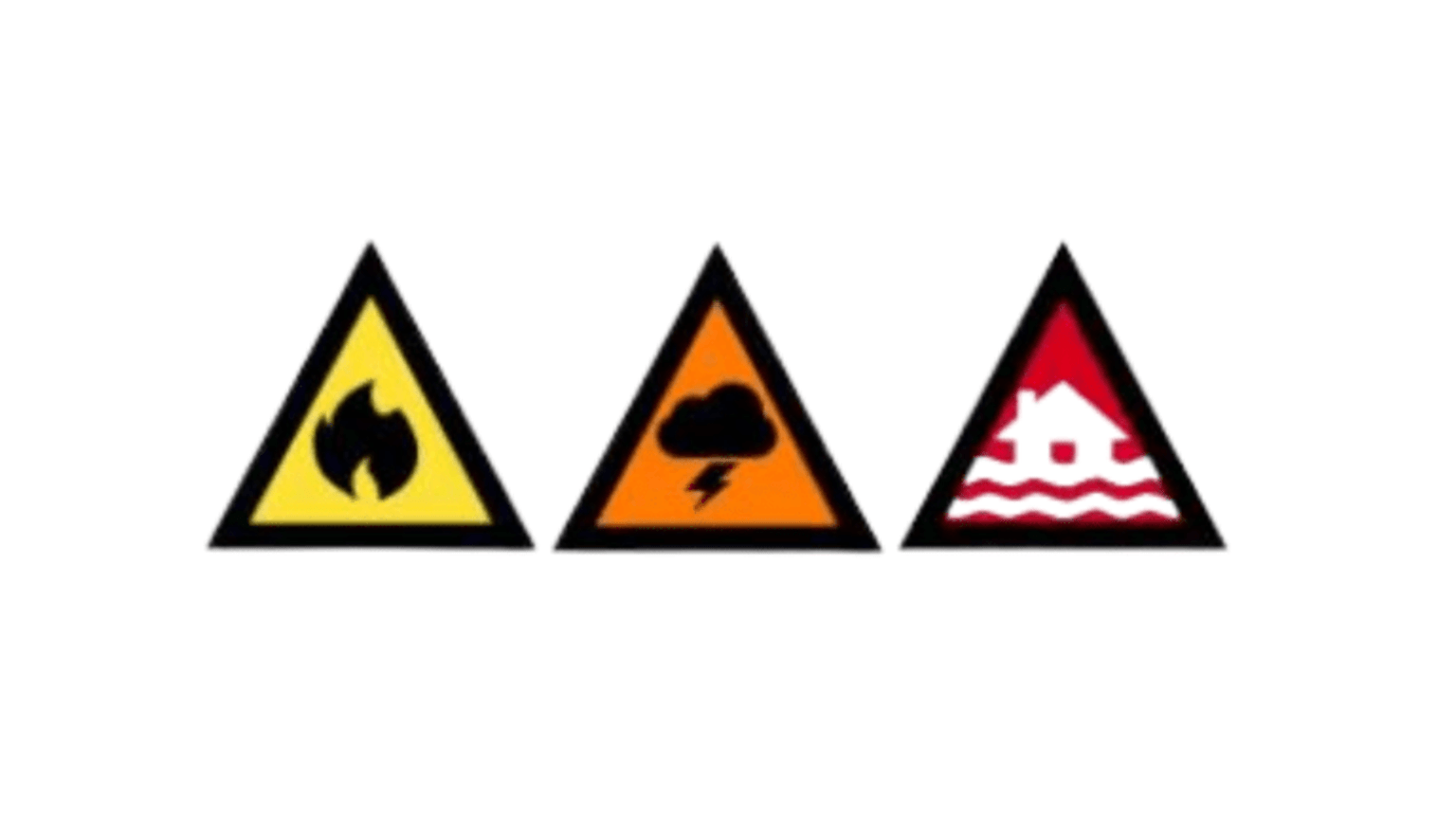
Warnings used in emergencies
Understand the 3 levels of emergency warnings - Advice, Watch and Act and Emergency Warning.
More help to use the app
The VicEmergency website has more detailed information on using the app and how to get the most out of it.
Updated